
01
Open Camuno on Windows
The Windows app checks compatibility, starts a private pairing session, and displays a QR code and six-digit pairing code.
Camuno turns your iPhone or Android camera into a Windows webcam for meetings, lessons, recordings, and live streams—without making you install another phone app.
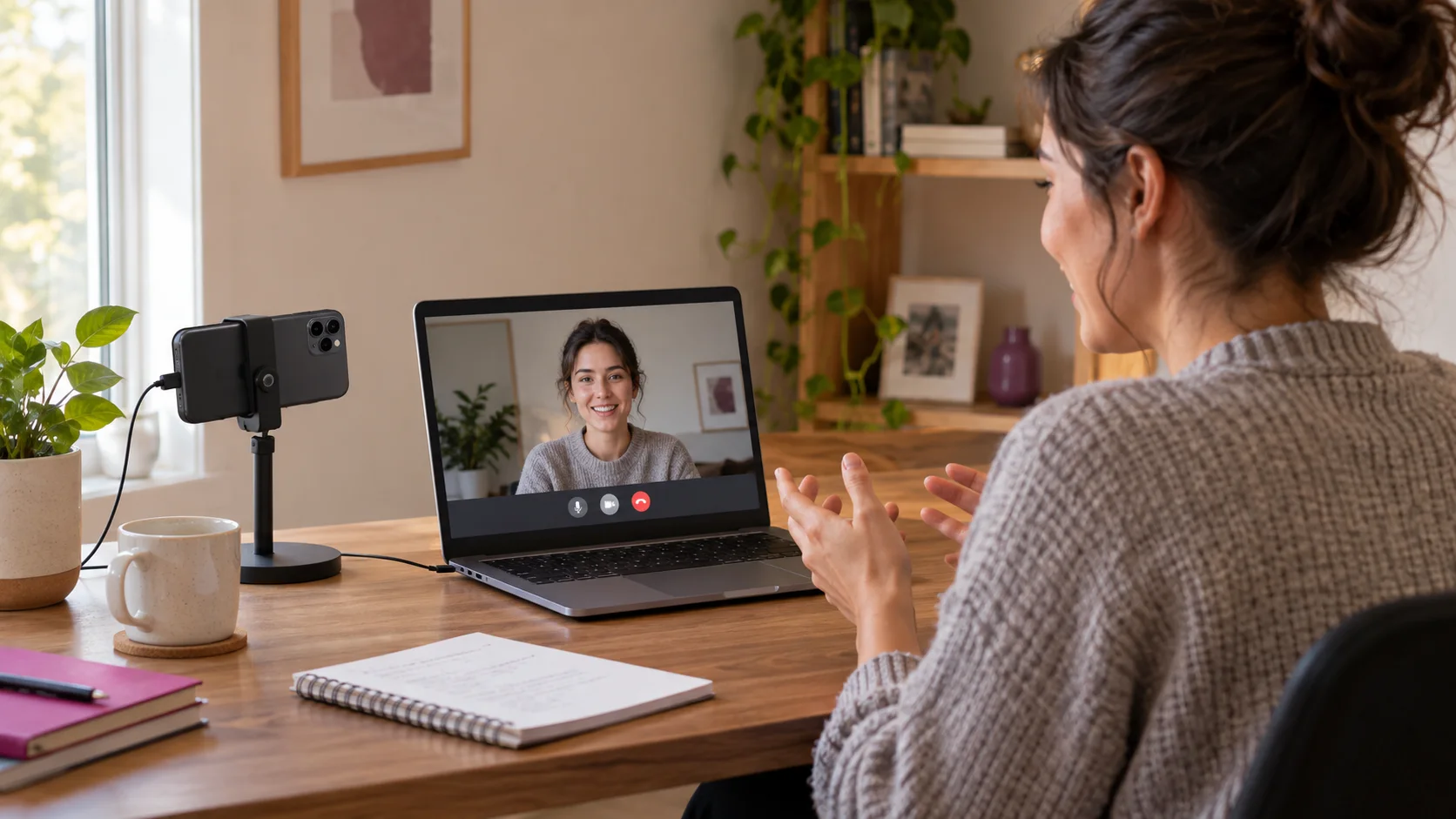
Camuno Virtual Camera
Phone connected
Use Camuno anywhere Windows lets you choose a camera
 Zoom
 Microsoft Teams
 OBS Studio
 Google Meet
How it works
Camuno handles the connection. Your phone supplies the camera you already know and trust.
The Windows app checks compatibility, starts a private pairing session, and displays a QR code and six-digit pairing code.
Scan the QR code with your phone, or open camuno.app/connect and enter the six-digit code. Camuno opens in your mobile browser—no phone app needed.
In your meeting or recording app, select Camuno Virtual Camera just like any other webcam.
Can't scan the QR code? Open camuno.app/connect on your phone and enter the six-digit pairing code shown on your PC. Both methods connect through your mobile browser—there is no phone app to install.
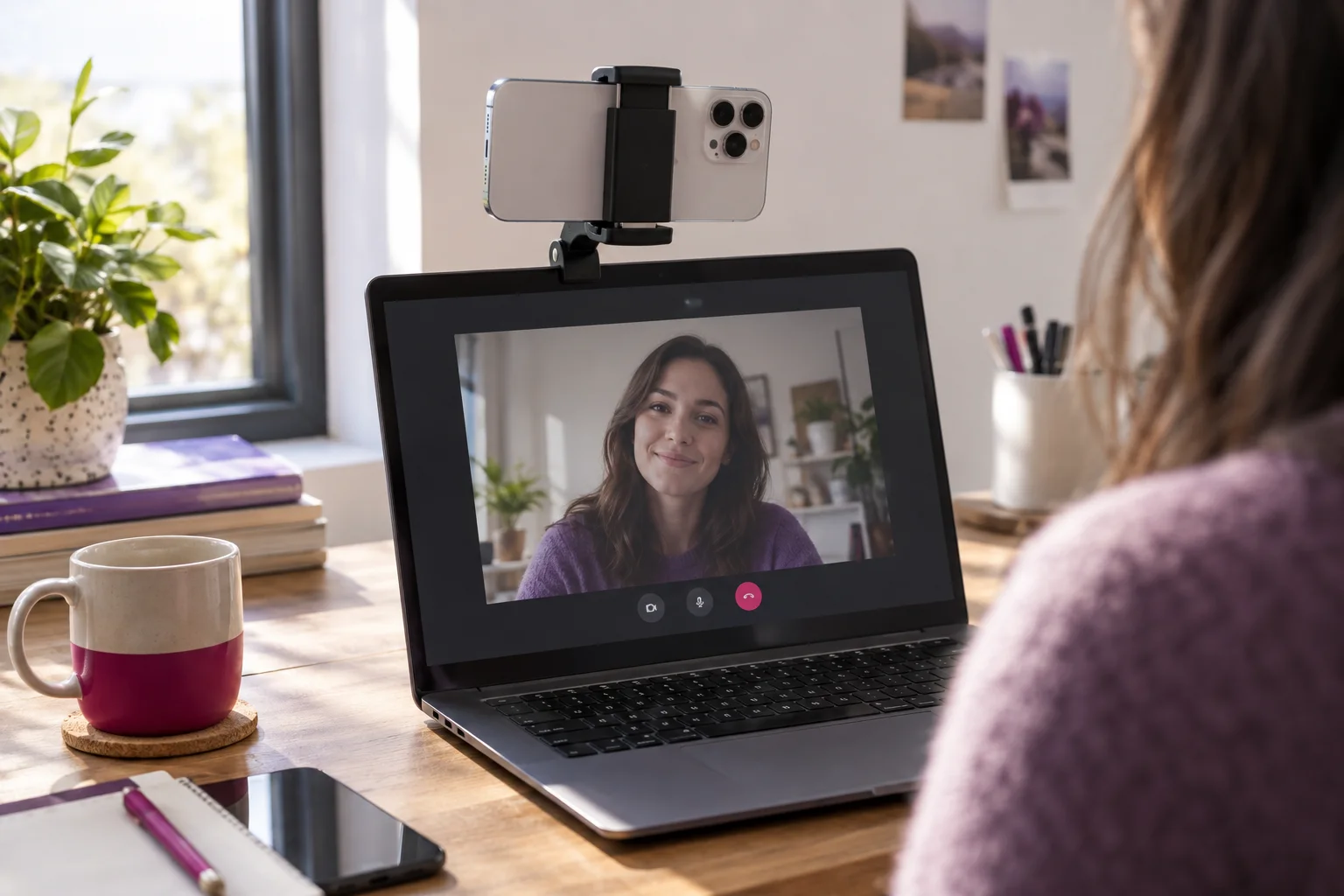
A small setup tip
A simple phone stand or laptop mount gives you a natural camera angle. For the sharpest result, use the rear camera and face a window or soft light.
Windows beta
No account to create. Install Camuno on your Windows 11 PC, then use the phone camera you already own as a clear, dependable webcam.
Download for Windows 11Requires 64-bit Windows 11. This beta is not code-signed yet, so Windows may show an unknown publisher warning.
iPhone and Android
Camuno uses your phone's browser. There is no separate iPhone or Android app to download.
Keep the browser page open while your phone is being used as the camera.
The useful things, included
The beta is deliberately simple: reliable video, straightforward controls, and no account wall between you and your camera.
Get a detailed, natural image when your phone, browser, and local network support it.
Your video stays clean for meetings, recordings, lessons, and streams throughout the beta.
The phone side runs in a modern mobile browser, such as Safari or Chrome. Scan the QR code or enter the pairing code, grant camera access, and connect.
Camuno appears in Windows as a virtual camera, so compatible apps can select it from their camera menu.
Switch cameras from your phone. Use the rear camera for quality or the front camera for easier framing.
Your phone and PC connect directly over the same Wi-Fi or LAN for a responsive everyday setup.
Clear about the connection
Camuno uses WebRTC to send camera video directly to the paired Windows computer on your local network. The Camuno service helps the devices find each other; it does not store your camera feed.
Before you start
We would rather be precise than claim support we have not verified yet. Camuno is currently focused on one dependable setup.
Camuno is still in beta. These are the practical details worth knowing before you try it.
Yes. Camuno is free during the beta, with 1080p available and no watermark. We may introduce paid plans later, but we will explain any change before it affects new releases.
No. Scan the QR code shown on your PC, or open camuno.app/connect on your phone and enter the six-digit pairing code. Camuno runs in your mobile browser; keep that page open while it is sending video.
The current beta is designed for a phone and Windows PC on the same local network. Internet relay is not part of this first release.
No. The Windows app registers Camuno Virtual Camera. In a compatible app, open its camera settings and select Camuno Virtual Camera.
Starting with Windows 11 gives us a smaller, testable compatibility surface for the beta. We will make decisions about older Windows versions after the core experience is stable.
The current beta installer is not code-signed yet, so Windows SmartScreen may show an unknown publisher warning. Download Camuno only from camuno.app. Code signing is planned before the wider release.